Git and GitHub Made Simple: A Complete Guide - Part 4

Release Management Professional | Transitioning to DevOps
With a proven track record in Release Management, I'm on an exciting journey to transition into the world of DevOps. I specialize in orchestrating the smooth deployment of software and applications, and I'm now gearing up to bridge the gap between development and operations.
My passion lies in optimizing release processes, automating deployments, and ensuring the efficiency of IT operations. I'm actively enhancing my skill set in DevOps practices, including cloud technologies, scripting, and CI/CD pipelines.
I'm keen to connect with professionals who share this enthusiasm and explore opportunities for mutual growth and collaboration in the DevOps domain. Let's connect and exchange insights about the evolving landscapes of Release Management and DevOps!
#ReleaseManagement #DevOps #EfficiencyOptimization
In the previous parts, we learned the basics of Git, created repositories, and became code-committers. Now, let's go back in time! Git has a fantastic feature called "history," and it's like a magical time machine for your code. Buckle up, and let's dive deep into Git history.
Git Log: Your Time Machine
Imagine you want to see all the changes and who made them in your project. Git's got your back with the git log command. You can use it to check the history of your code and even travel to a specific point in time.
Getting Started with git log
To see the history of a specific file, use:
theshubhamgour@ubuntuM1:~/Desktop/git-hash$ git log file1.txt
This command will display all the commits related to that file.
To get a complete project history, simply type:
theshubhamgour@ubuntuM1:~/Desktop/git-hash$ git log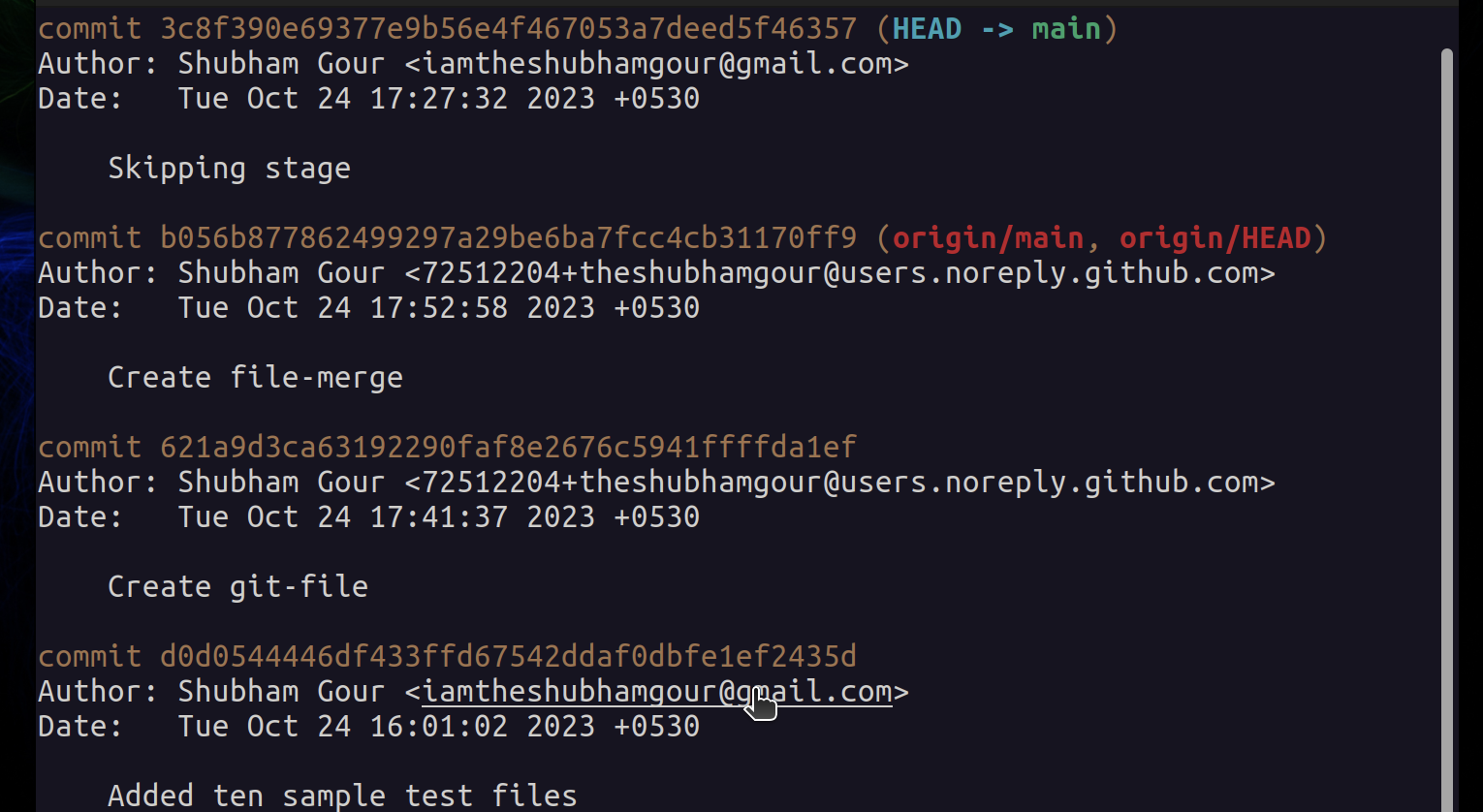
This shows you every commit in your project.
Explore Options with git log
Limit the Number of Commits Shown: Use
-nto specify the number of commits to display. For example,git log -n 2shows the last 2 commits.theshubhamgour@ubuntuM1:~/Desktop/git-hash$ git log -n2
Filter by Author: If you want to see commits by a specific author, use
--author. For instance,git log --author="shubham"will show commits by Shubham.theshubhamgour@ubuntuM1:~/Desktop/git-hash$ git log --author="Shubham"
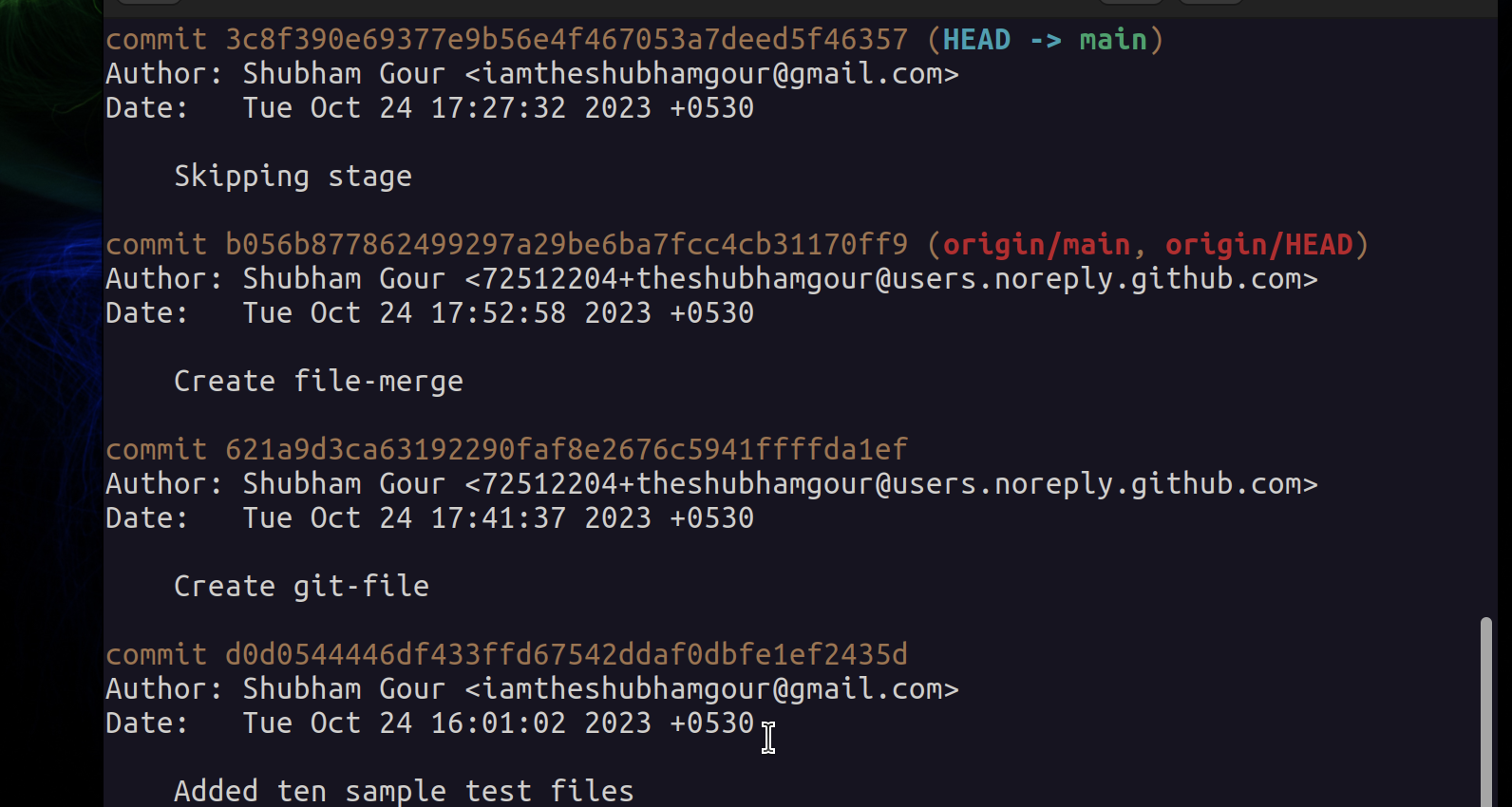
Time Travel: You can journey through time using
--sinceand--untilto filter commits made between certain dates. For example,git log --since="2016/12/13"shows commits from that date onward.theshubhamgour@ubuntuM1:~/Desktop/git-hash$ git log --since="2016/12/13"
Search Commit Messages: Use
--grepto search for specific keywords or phrases in commit messages. For instance,git log --grep="DB code"will list commits with "DB code" in their messages.theshubhamgour@ubuntuM1:~/Desktop/git-hash$ git log --grep="Create"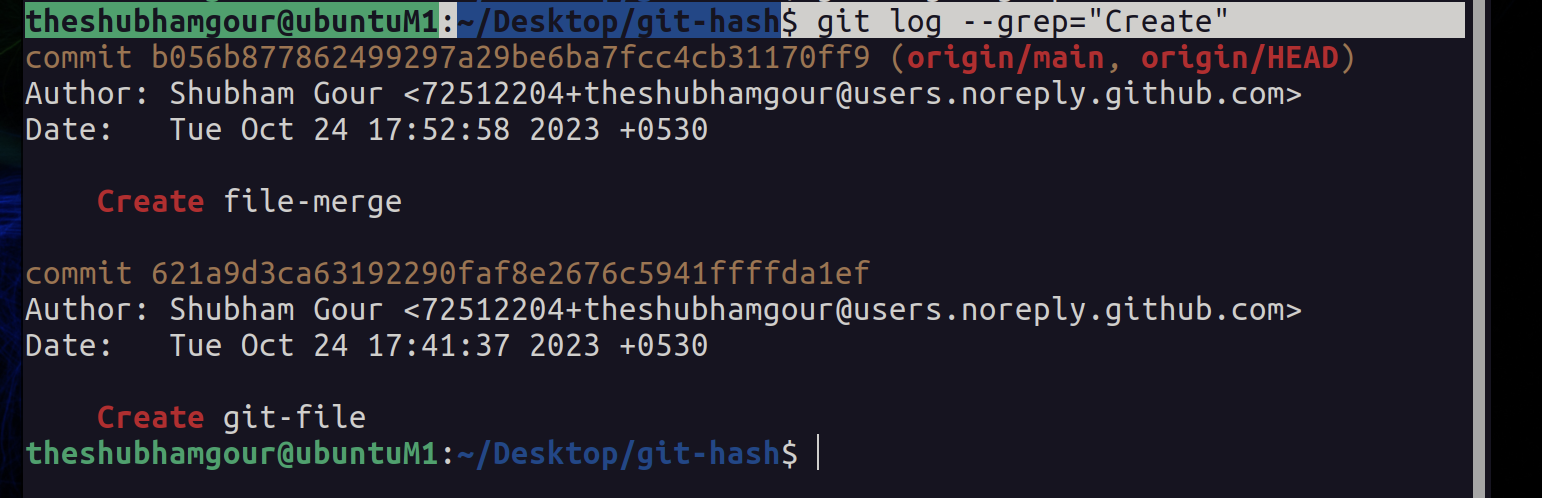
One-Liner Logs: If you prefer a high-level summary,
--onelinegives you a condensed view with only commit IDs and messages.theshubhamgour@ubuntuM1:~/Desktop/git-hash$ git log --oneline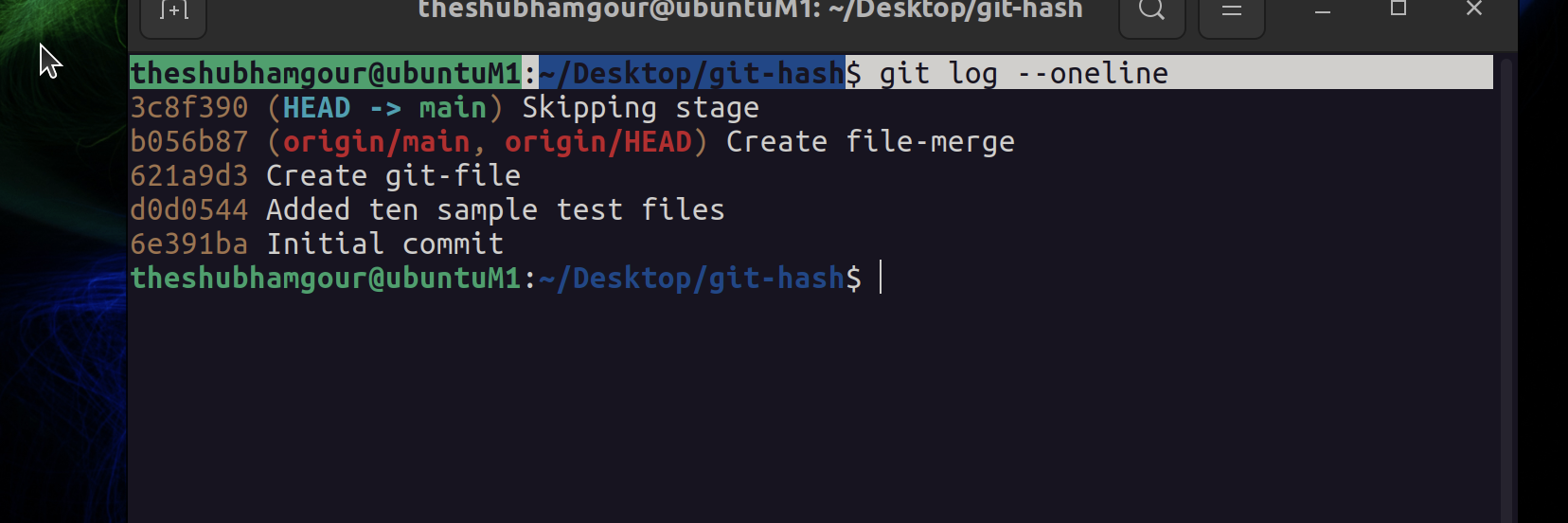
Qn: Find the Unicorn Commits
Let's say you want to find all the magical commits done by a user named "Shubham" that contain the words "Add" in the commit messages.
theshubhamgour@ubuntuM1:~/Desktop/git-hash$ git log --author="Shubham" --grep="Add" -n2
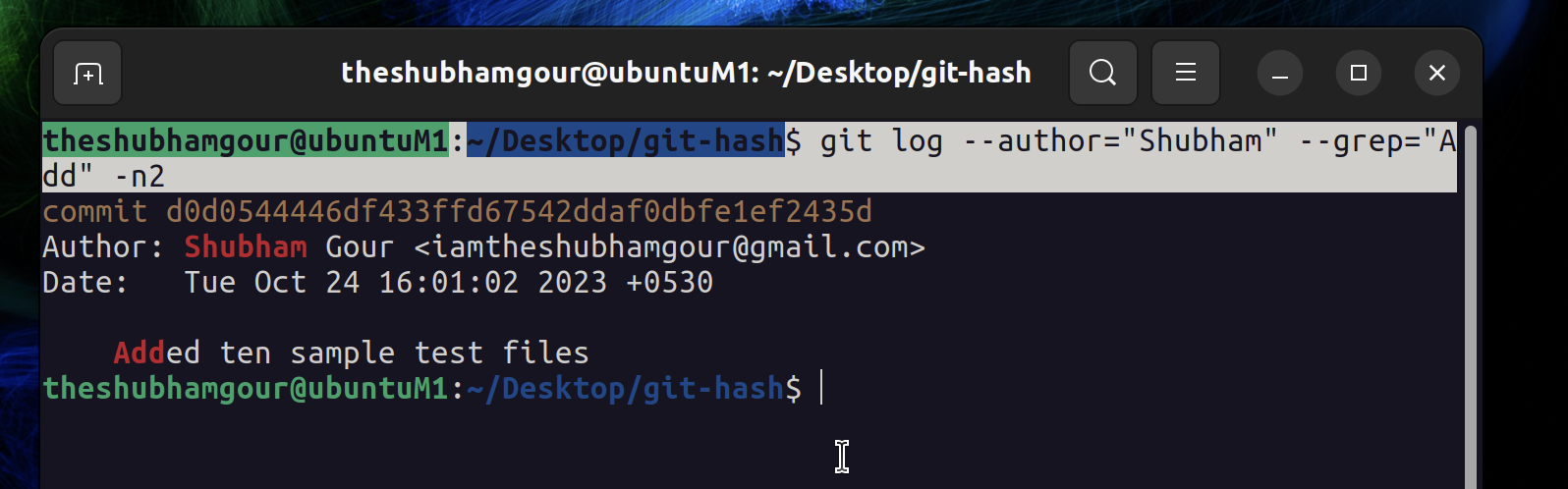
This command will show you the commits that matches the mentiond criteria.
Now you're a Git time traveler, exploring your project's history with confidence. The git log command is your ticket to the past, where every line of code tells a story. Happy coding and time traveling! 🕰️
This is not the end more to come Join me in this series and lets connect on LinkedIn


