Git and Github Made Simple : The Final Part

Release Management Professional | Transitioning to DevOps
With a proven track record in Release Management, I'm on an exciting journey to transition into the world of DevOps. I specialize in orchestrating the smooth deployment of software and applications, and I'm now gearing up to bridge the gap between development and operations.
My passion lies in optimizing release processes, automating deployments, and ensuring the efficiency of IT operations. I'm actively enhancing my skill set in DevOps practices, including cloud technologies, scripting, and CI/CD pipelines.
I'm keen to connect with professionals who share this enthusiasm and explore opportunities for mutual growth and collaboration in the DevOps domain. Let's connect and exchange insights about the evolving landscapes of Release Management and DevOps!
#ReleaseManagement #DevOps #EfficiencyOptimization
A Guide to Resolving Git Merges with Conflicts
Merging in Git is a powerful way to bring changes from one branch into another. However, conflicts can arise when two branches modify the same part of a file differently. In this guide, we'll walk through the steps to resolve Git merges with conflicts effectively.
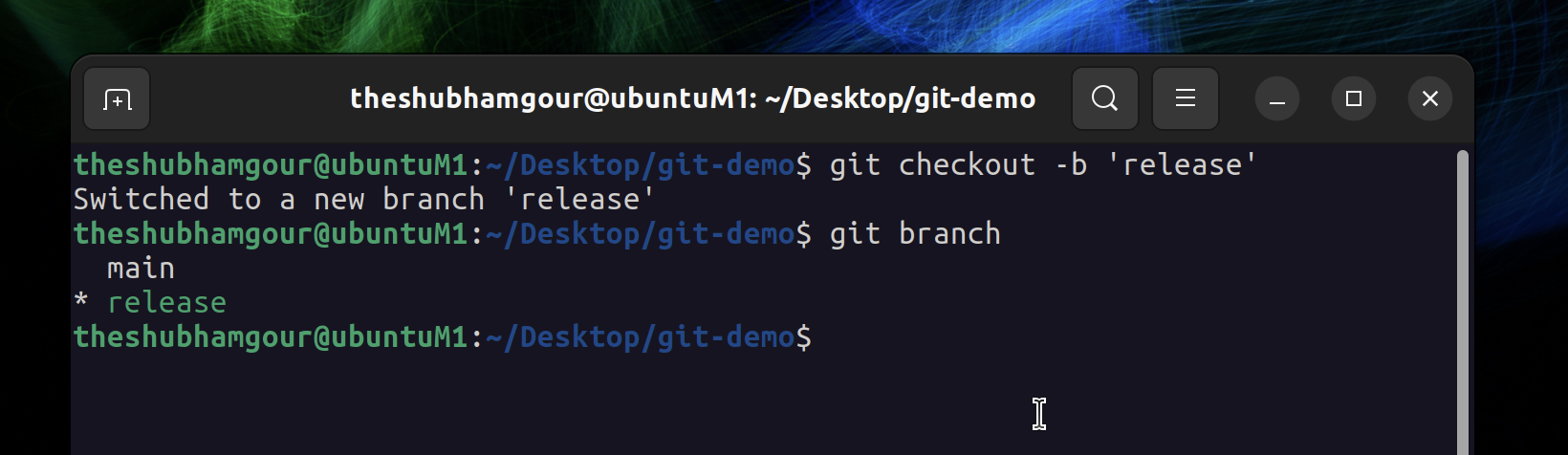
1. List All Branches
Before you begin, list all the branches to get a clear view of what you're working with.
theshubhamgour@ubuntuM1:~/Desktop/git-demo$ git branch
2. Create a New Branch
To initiate the conflict, create a new branch where you'll make changes. Let's call it dev_1.2.3.
theshubhamgour@ubuntuM1:~/Desktop/git-demo$ git checkout -b dev_1.2.3
3. Set the Stage
To create a conflict, select a file that's common to both main and dev_1.2.3 branches. For this example, we'll use index.html.

In main (index.html):
Line 6: -> <title>Webinar Booking</title>
In dev_1.2.3 (index.html):

Line 6: ->Changes are here testing conflict
4. Merge the Changes
With the conflict-ready branches in place, switch to the target branch where you want to merge the changes. In our case, it's main.
theshubhamgour@ubuntuM1:~/Desktop/git-demo$ git checkout main
Now, merge the changes from dev_1.2.3 into master.
theshubhamgour@ubuntuM1:~/Desktop/git-demo$ git merge dev_1.2.3
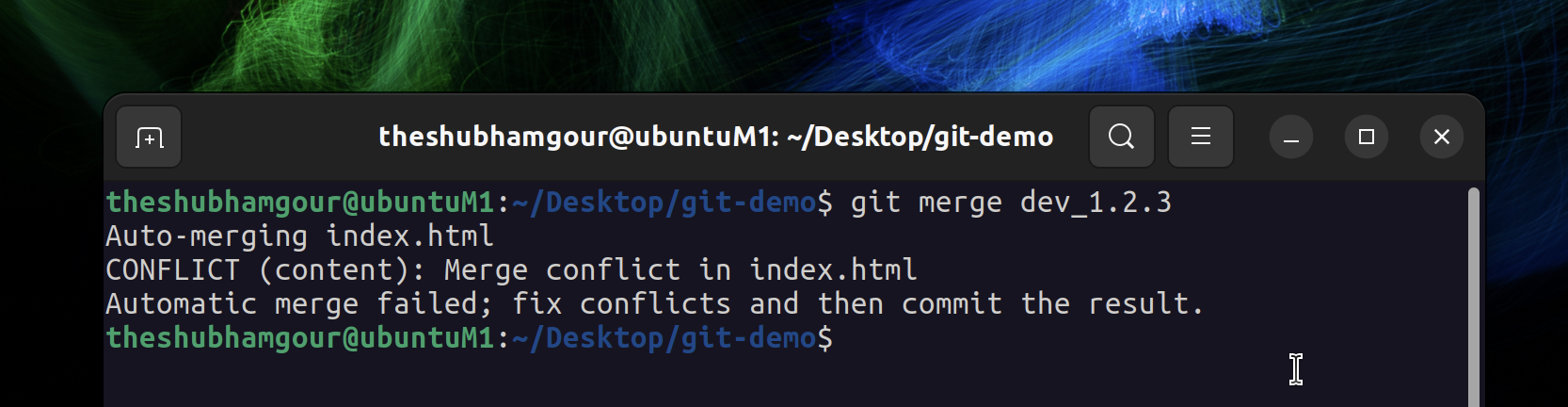
5. Detecting Conflicts
After the merge command, use git status to identify files with conflicts.

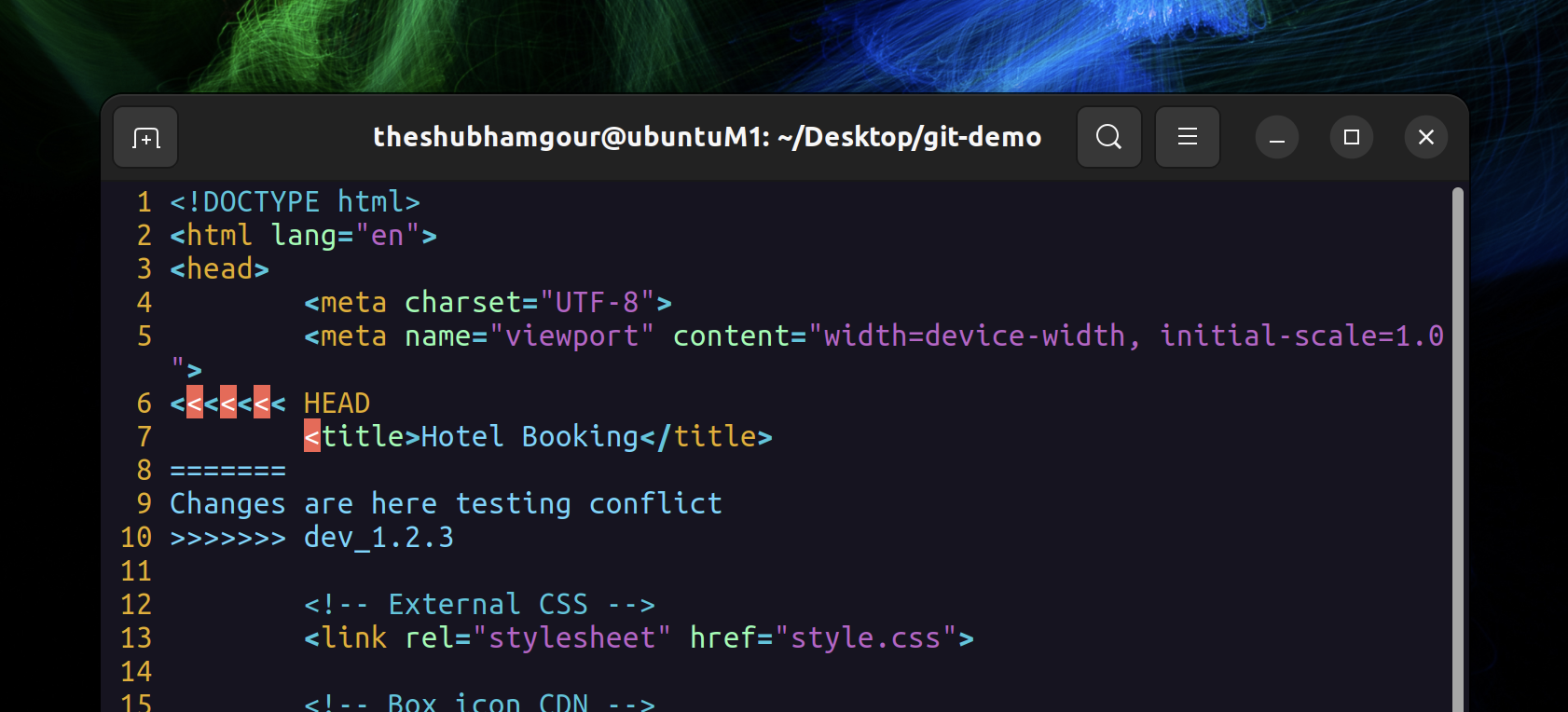
6. Resolve the Conflict
Open the conflicted file, typically identified by conflict markers, and manually select the correct content. Remove the conflict markers.
Use Vim or any editor to fix the conflicts
7. Commit Your Changes
After resolving the conflict, stage the changes.

theshubhamgour@ubuntuM1:~/Desktop/git-demo$ git add .
Commit your changes to complete the merge.
theshubhamgour@ubuntuM1:~/Desktop/git-demo$ git commit -m "Resolve merge conflict"

8. Push to Remote
Finally, push the merged changes to the remote repository.
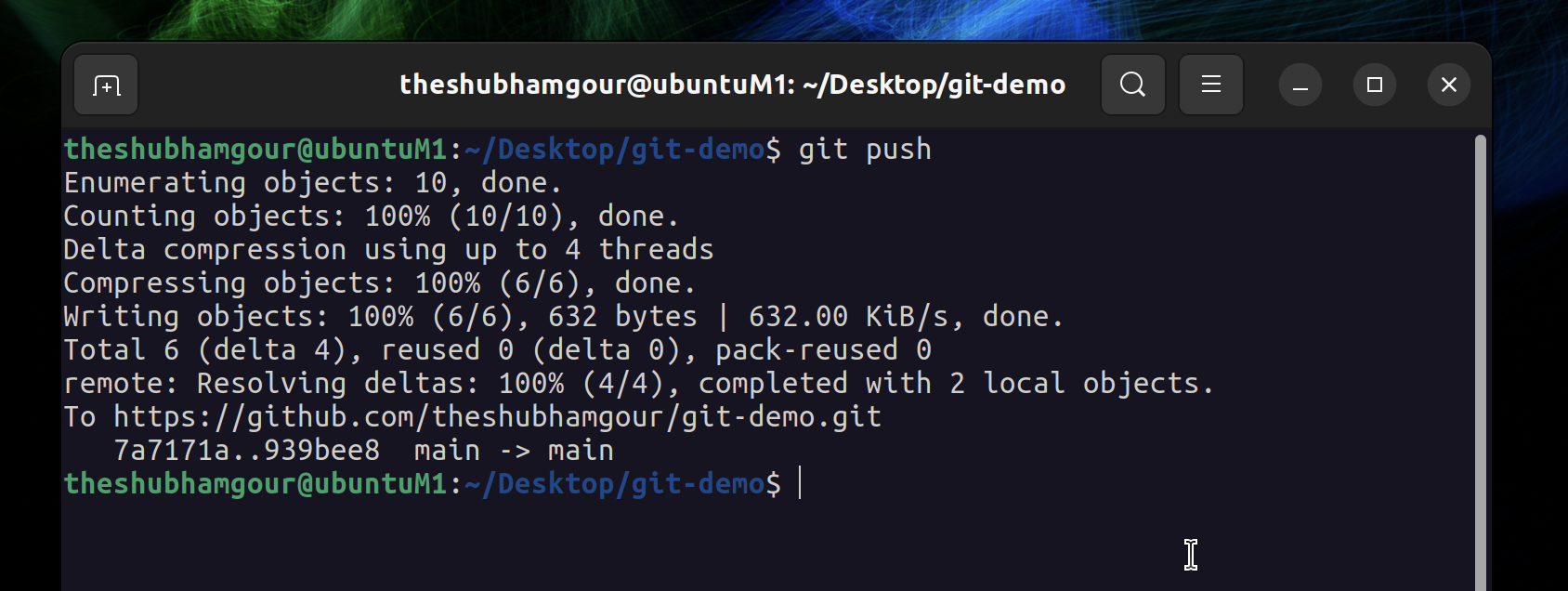
theshubhamgour@ubuntuM1:~/Desktop/git-demo$ git push
And that's it! You've successfully resolved a Git merge conflict. This process ensures that your code stays clean and coherent, even when multiple contributors are working on the same files.
With this, we conclude our Git and Github Journey thanks for being alongside .


